It already knows the app
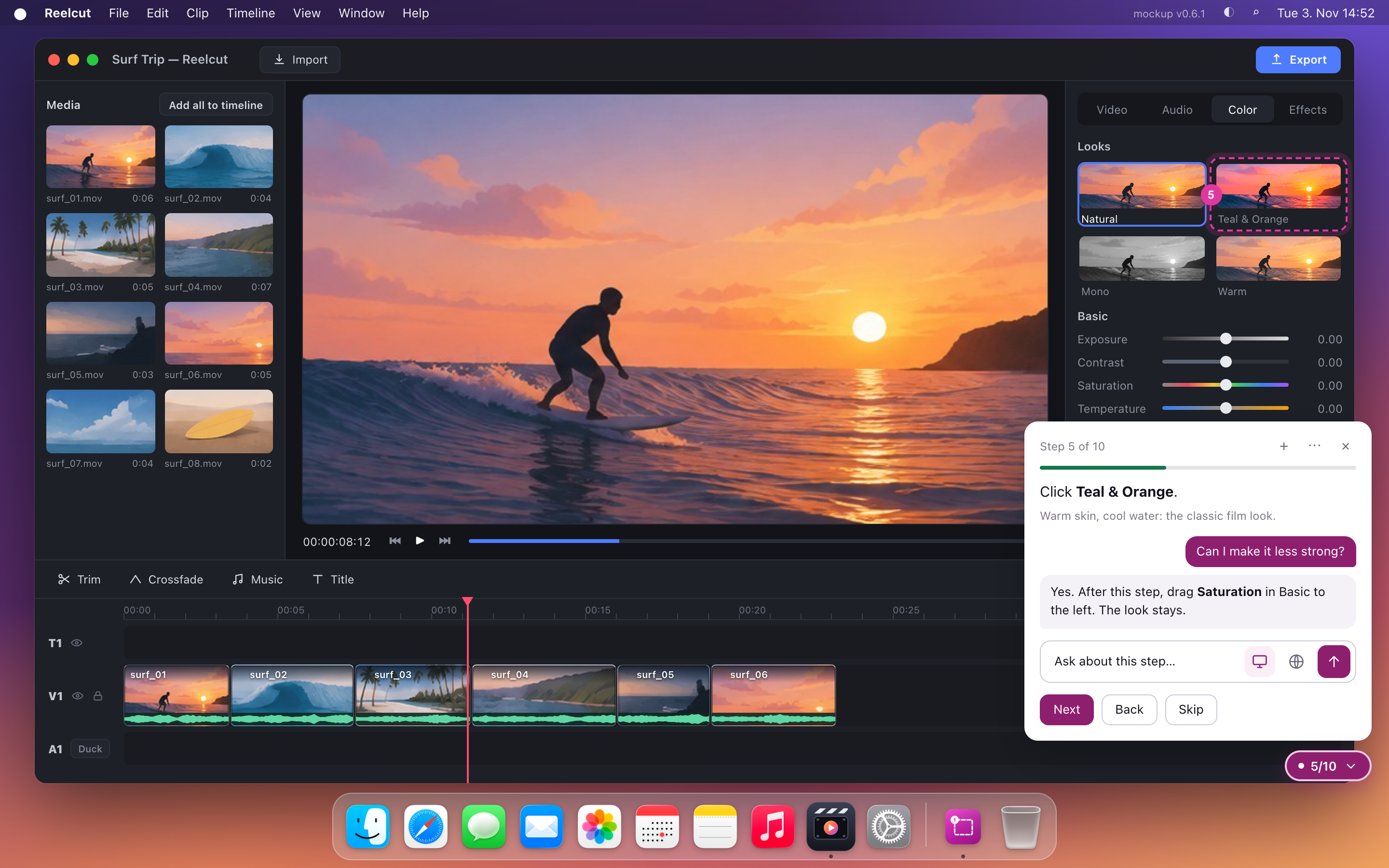
One shortcut, over whatever is in front — the bar names the app it is reading before you type a word. Your work stays there, untouched, behind it.
Press ⌥Space — ask about the app you're already in.
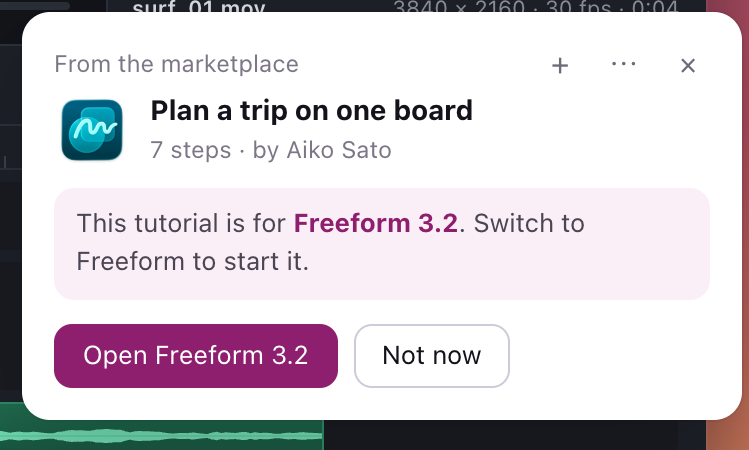
No switching to a browser, no pasting screenshots into a chatbot, no losing your place. Guidelet reads whatever is on your screen, gives you the right amount of help, and draws a box around the exact control you need — on top of the app itself.
Interactive product tour · seven apps · direct answers and guided walkthroughs
How it works
One shortcut, over whatever is in front — the bar names the app it is reading before you type a word. Your work stays there, untouched, behind it.
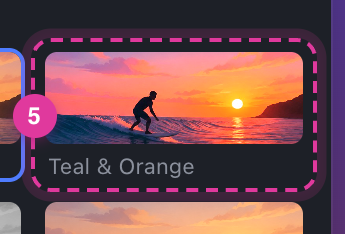
Not a description of where the button is. A box on the button, numbered in the order you touch it.
Executable tutorials
An answer when it is simple. A walkthrough when it is not.
Ask naturally. Guidelet works out whether the task needs one highlighted control or a route with several actions — you do not have to choose a mode first.
For a single action, Guidelet answers directly and marks the control to use.
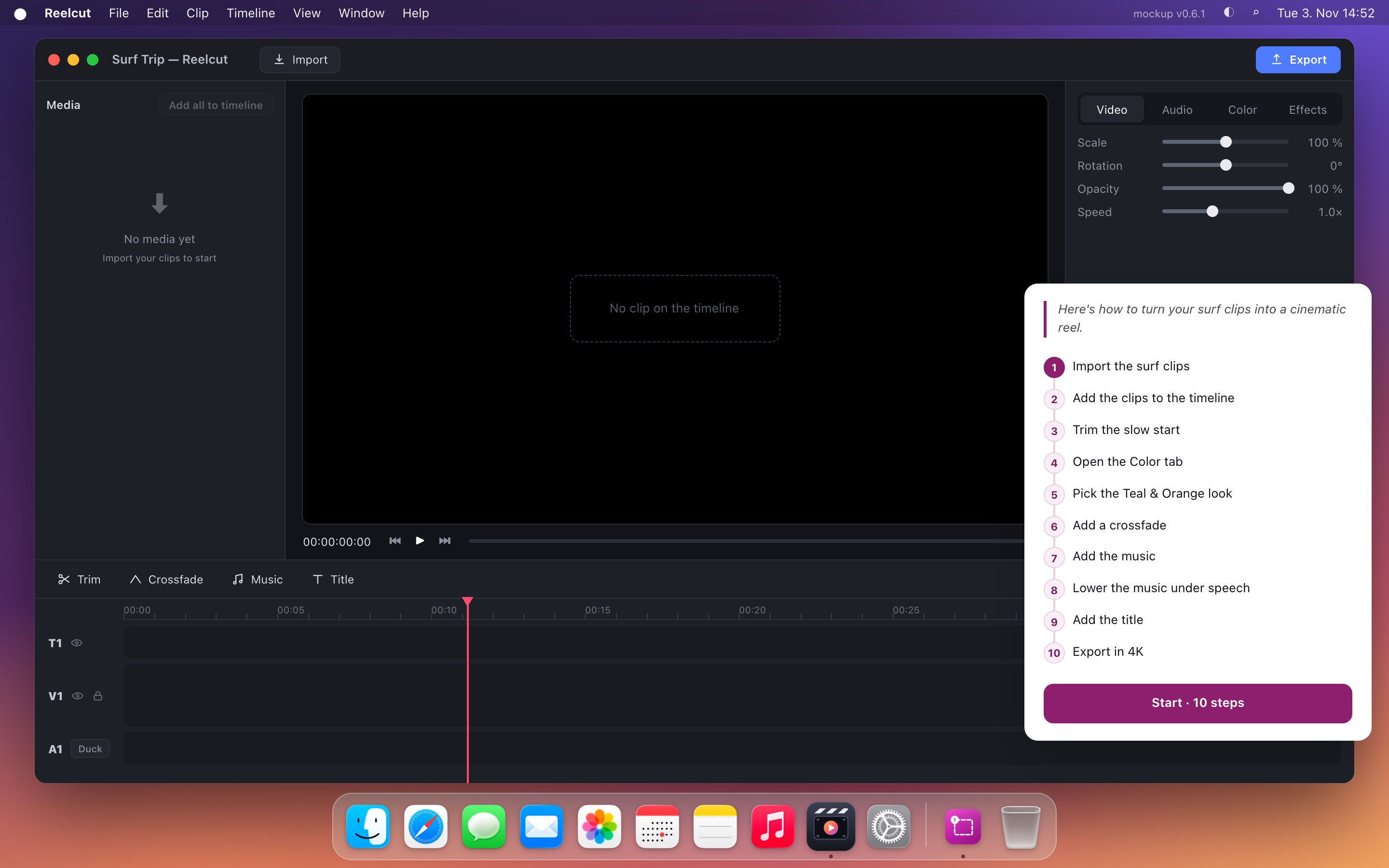
For a longer task, it builds the actions on the fly and shows what the walkthrough will cover.
Start the route when you want guidance. Guidelet highlights the current action and checks the screen before moving on.
Stays out of the way
Your app keeps its window and stays usable. The answer takes the side, the box stays on the button, and you carry on in the document you were already in.
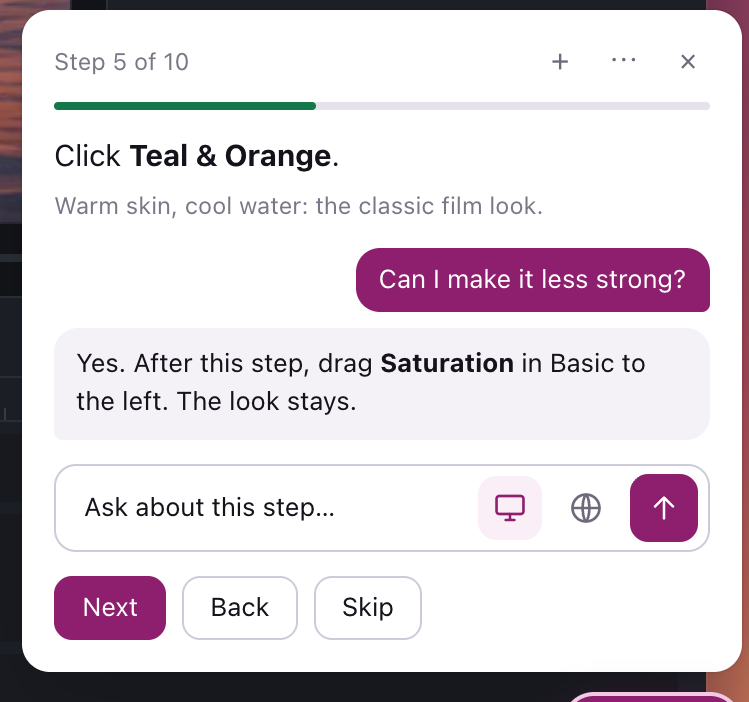
Yes. After this step, drag Saturation in Basic to the left. The look stays.
Follow-ups ask about the current step — without leaving the app or losing the boxes already on screen.
Works in anything you can see
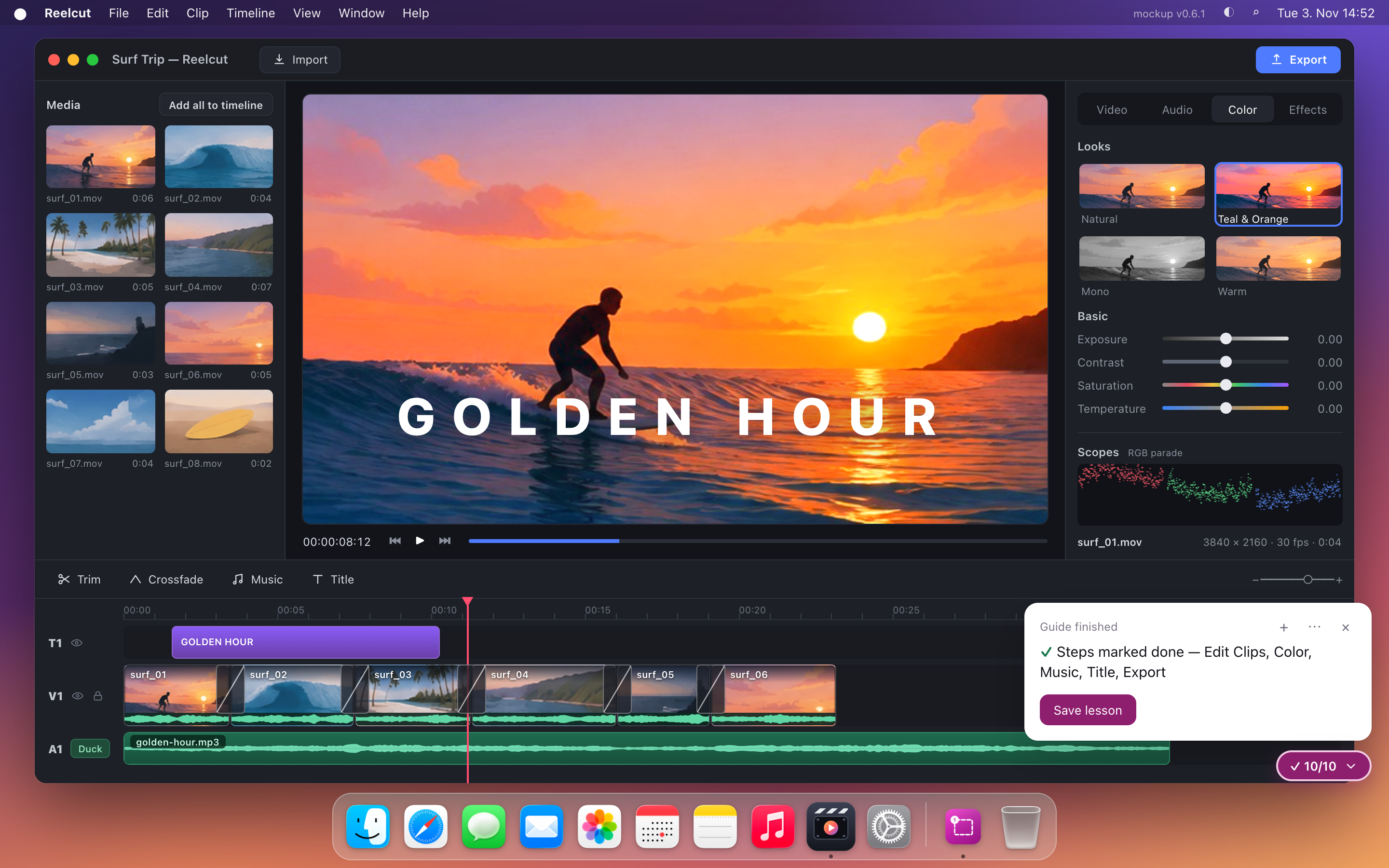
Nothing here was built for a video editor. The same thing that finds a button in Word finds one in CapCut, Blender, or software with twelve users — because it looks at your screen the way you do.
 Microsoft Word
 Excel
 PowerPoint
 Photoshop
 Illustrator
 Figma
 Blender
 Premiere Pro
 DaVinci Resolve
 CapCut
 Ableton Live
 Logic Pro
 Xcode
 VS Code
 Finder
 System Settings
No plugins. No per-app setup. Nothing to integrate.
Guidelet reads pixels, not APIs — so it works in anything you can see, including the app nobody has written a tutorial for.
Tutorials that stay executable
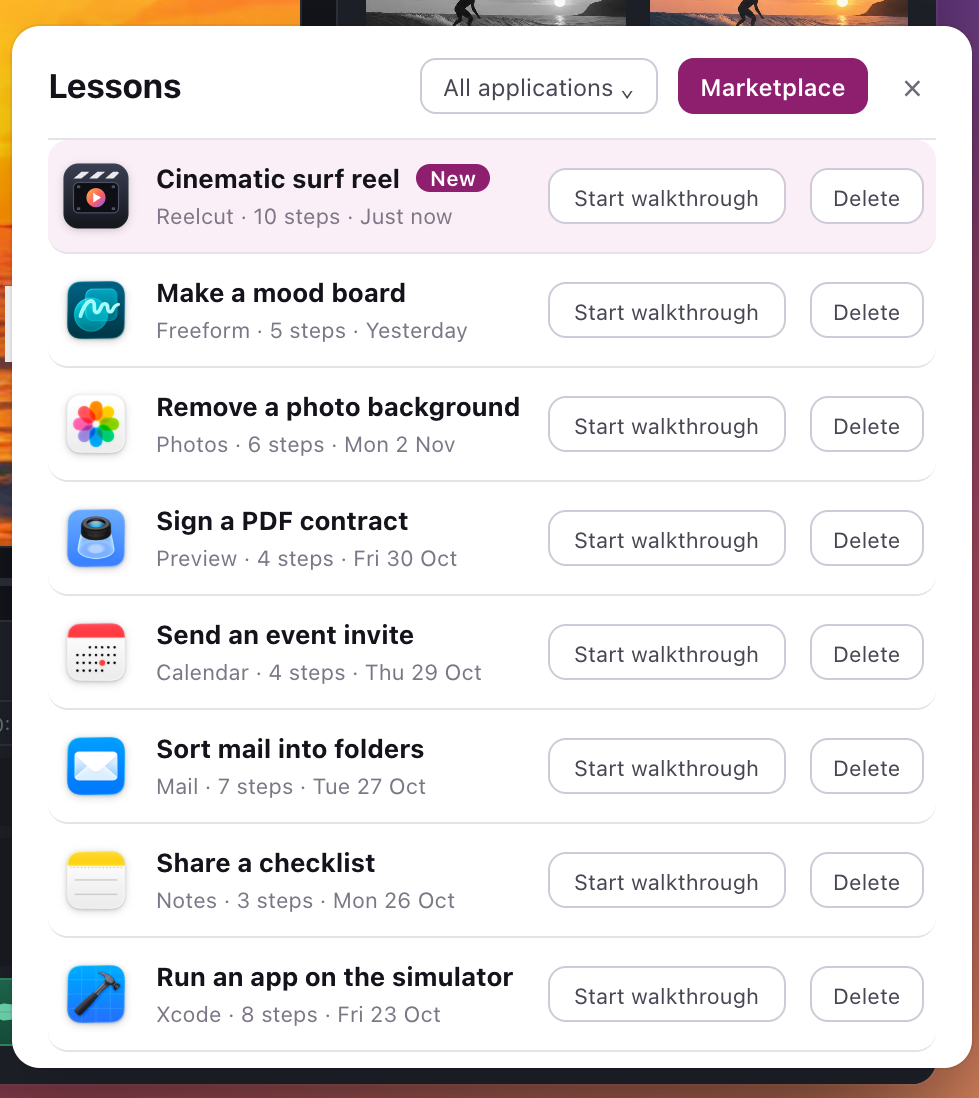
Keep an answer and its boxes for later. Reopen it the next time you need the same steps — the walkthrough runs again, box by box, on your screen.
Your lessons
One click to keep it
From the marketplace
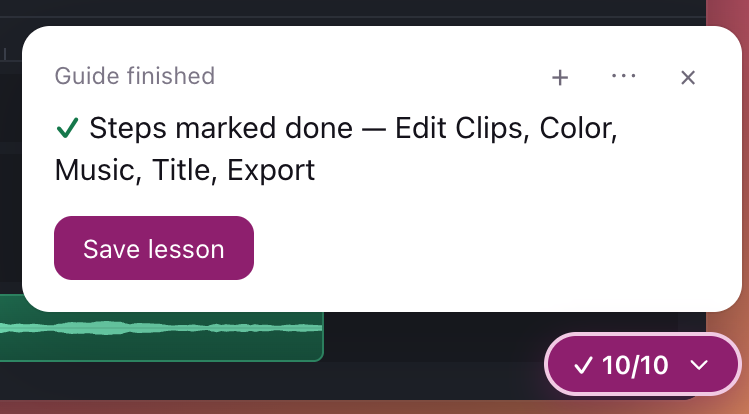
This tutorial is for Freeform 3.2. Switch to Freeform to start it — Guidelet opens the app and runs the steps there.
Why it feels different
Four context switches to press one button.
Zero context switches. You never looked away.
Beyond the answer
Questions stay filed under the app you asked them in, so Word answers never mix with CapCut ones.
Keep an answer and its boxes for later. Reopen it the next time you need the same steps.
Drag a box around one panel and ask about that alone, instead of the whole screen.
It searches on its own when the app is niche, and lists the sources it used under the answer.
Send an answer with its highlighted screenshot to someone else, or save it to disk.
Ask the next question without leaving the app or losing the boxes already on screen.
Privacy
What Guidelet sees and where it goes.
Guidelet needs a view of the screen to answer a question, but that does not mean continuous recording. You decide when a capture happens.
Read the complete privacy noticeGet the download link for the macOS build and press ⌥Space the next time a menu wins.